Organize PDF Pages

PDF पेज का क्रम बदलें

  • 100% free
  • No sign-up
  • Private – runs in your browser
  • Works on mobile

How to use the Organize PDF Pages

Rearrange, reverse or remove PDF pages with drag and drop.

  1. Choose your PDF.
  2. Drag pages into the new order (or use ← →). ✕ removes a page; Reverse flips the order.
  3. Tap Save new page order.
See the steps as a picture
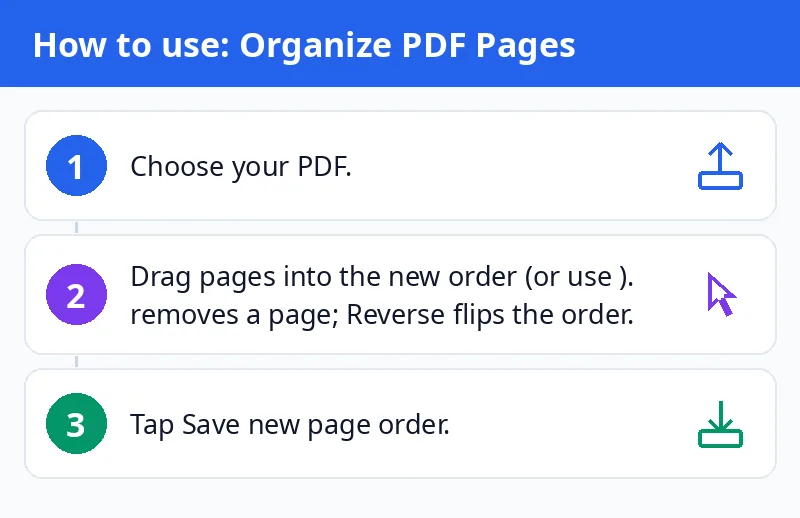
How to use Organize PDF Pages: 1. Choose your PDF. 2. Drag pages into the new order (or use ← →). ✕ removes a page; Reverse flips the order. 3. Tap Save new page order.

Supported formats: PDF

Useful when a scanner fed the pages in the wrong order, or when you need the last page first. On phones the ← → buttons are easier than dragging.

Private by design

Your PDF is opened and changed inside your browser – it is never uploaded to a server. That makes it safe for bills, certificates, bank statements and ID documents.

Good to know

  • Works with PDFs up to about 100 MB; very large files are slower on phones.
  • Password-protected PDFs cannot be changed here. Open the file in a PDF viewer, save a copy without the password, then try again.
  • Your original file is not changed – you download a new copy.

Frequently asked questions

Can I add pages from another PDF?

Use PDF Merger to join the files first, then organize the pages here.

Is there a page limit?

No fixed limit; a few hundred pages work fine on most phones.