Crop PDF

PDF क्रॉप करें

  • 100% free
  • No sign-up
  • Private – runs in your browser
  • Works on mobile

How to use the Crop PDF

Cut white margins or unwanted edges off PDF pages.

  1. Choose your PDF – the first page is shown large.
  2. Set how many millimetres to cut from each side; the shaded box shows what stays.
  3. Tap Save cropped PDF.
See the steps as a picture
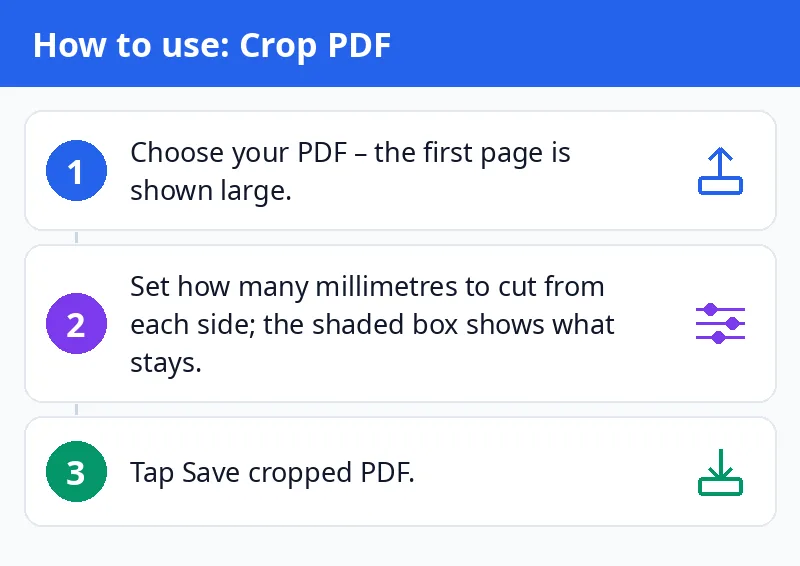
How to use Crop PDF: 1. Choose your PDF – the first page is shown large. 2. Set how many millimetres to cut from each side; the shaded box shows what stays. 3. Tap Save cropped PDF.

Supported formats: PDF

Good for removing wide white margins before printing or reading on a phone, or cutting a scanner's black edge.

Cropping hides the outside area (it sets the PDF crop box), so text quality is unchanged. Tap another page below to preview it.

Private by design

Your PDF is opened and changed inside your browser – it is never uploaded to a server. That makes it safe for bills, certificates, bank statements and ID documents.

Good to know

  • Works with PDFs up to about 100 MB; very large files are slower on phones.
  • Password-protected PDFs cannot be changed here. Open the file in a PDF viewer, save a copy without the password, then try again.
  • Your original file is not changed – you download a new copy.

Frequently asked questions

Is the cut part deleted?

It is hidden in every PDF viewer and when printing, but it is still inside the file. Do not use cropping to hide private information – blur or delete pages instead.

Can I crop just one page?

Yes – choose “Only the page shown” and tap that page below.